How To Use Crocoblock Subkeys
Securing your crocoblock
Crocoblock is a very large, very powerful suite of tools for extending the functionality of your WordPress website and Elementor.
Like every premium plugin you buy it comes with an Activation License that you have to enter in order for the site to connect to the developer’s site and get permission to unlock all of it’s features.
This is great but it’s a pretty big security risk as once someone, say a client you’ve built a site for, has that license key they could realistically use it on any sites they wanted to without your permission.
Fortunately, Crocoblock have listened to their users and implemented a very handy security feature to protect your License: Subkeys.
Think of them as masks for the real License that are meaningless gibberish so if they’re stolen they don’t mean anything and they’re useless.
Securing your crocoblock
Crocoblock is a very large, very powerful suite of tools for extending the functionality of your WordPress website and Elementor.
Like every premium plugin you buy it comes with an Activation License that you have to enter in order for the site to connect to the developer’s site and get permission to unlock all of it’s features.
This is great but it’s a pretty big security risk as once someone, say a client you’ve built a site for, has that license key they could realistically use it on any sites they wanted to without your permission.
Fortunately, Crocoblock have listened to their users and implemented a very handy security feature to protect your License: Subkeys.
Think of them as masks for the real License that are meaningless gibberish so if they’re stolen they don’t mean anything and they’re useless.
Hard to figure out…
Like everything, there’s a right way to set them up and use them but there’s not much in the way of documentation about it out there that explains the steps clearly.
I know I took a while to get my head around them as they didn’t quite work as I thought they did!
You’d think that you can just create a Subkey and use that on the site but it’s not that easy…
Hopefully this will help and fill that gap.
Hard to figure out…
Like everything, there’s a right way to set them up and use them but there’s not much in the way of documentation about it out there that explains the steps clearly.
I know I took a while to get my head around them as they didn’t quite work as I thought they did!
You’d think that you can just create a Subkey and use that on the site but it’s not that easy…
Hopefully this will help and fill that gap.
Step 1:
I’m assuming here that you’ve bought Crocoblock and installed the wizard on your site (no-one needs to sit through another “this is how you install a plugin” explanation).
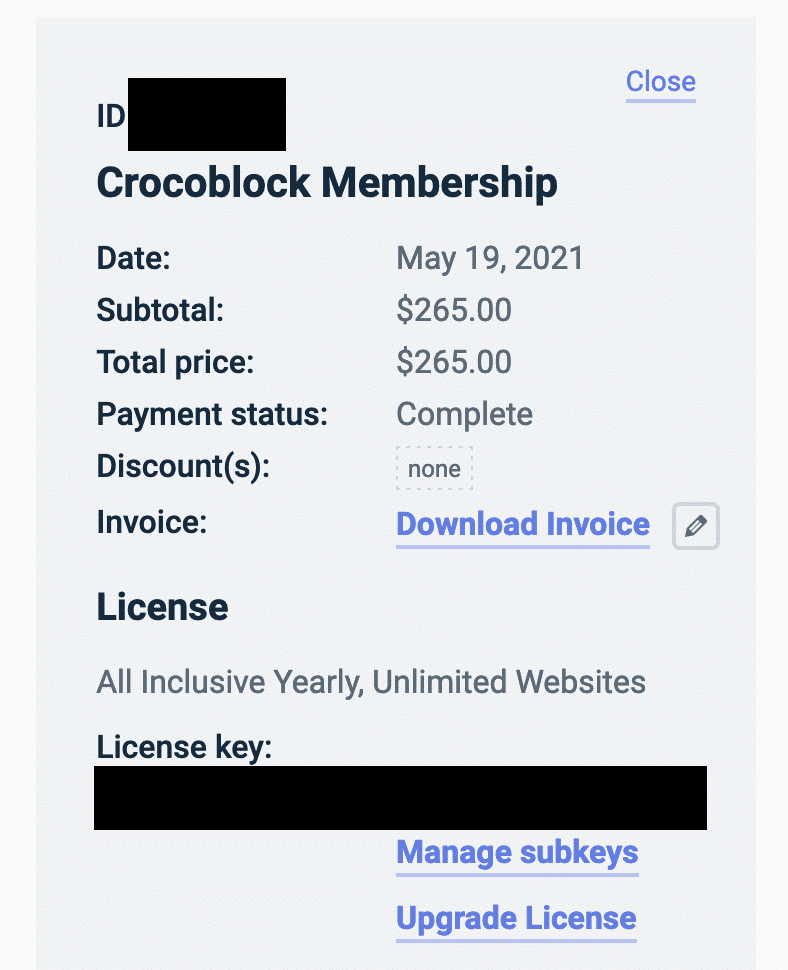
In your Crocoblock account is the Membership section that has your actual License key in it.
You’ll need this so go grab it…
Step 1:
I’m assuming here that you’ve bought Crocoblock and installed the wizard on your site (no-one needs to sit through another “this is how you install a plugin” explanation).
In your Crocoblock account is the Membership section that has your actual License key in it.
You’ll need this so go grab it…
Step 2:
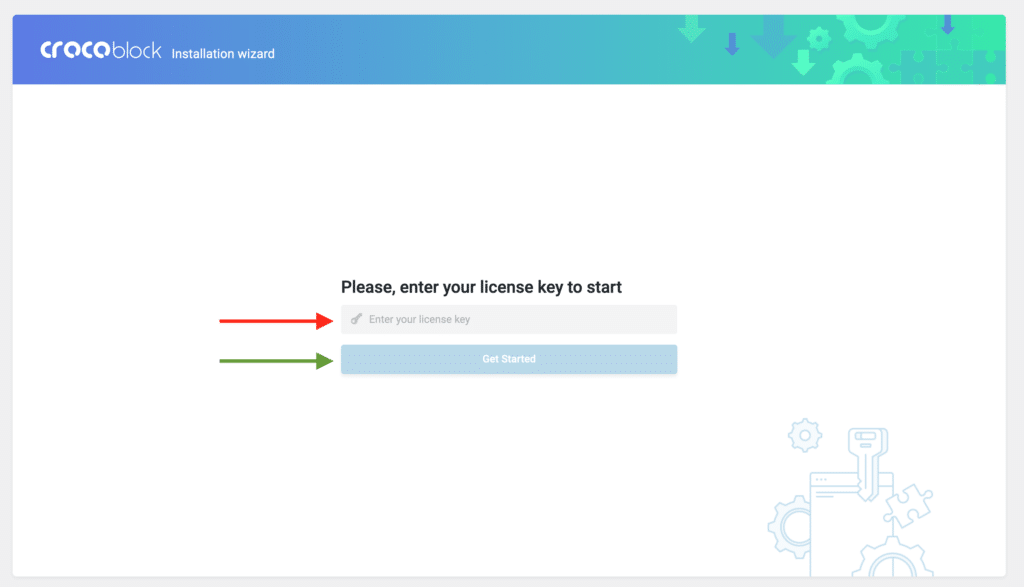
Activate Crocoblock using your actual License.
Step 2:
Activate Crocoblock using your actual License.
Step 3a:
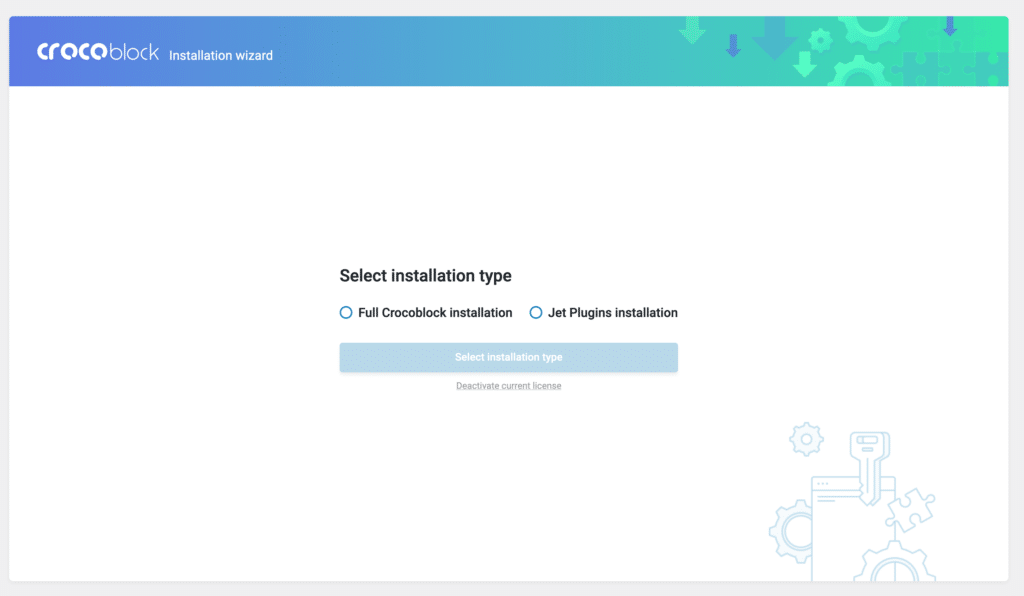
Choose your installation type.
You can either do a full flavoured install of everything that comes as part of the Crocoblock Suite or you can choose to add in the individual bits and pieces that you need to create the site.
Step 3b:
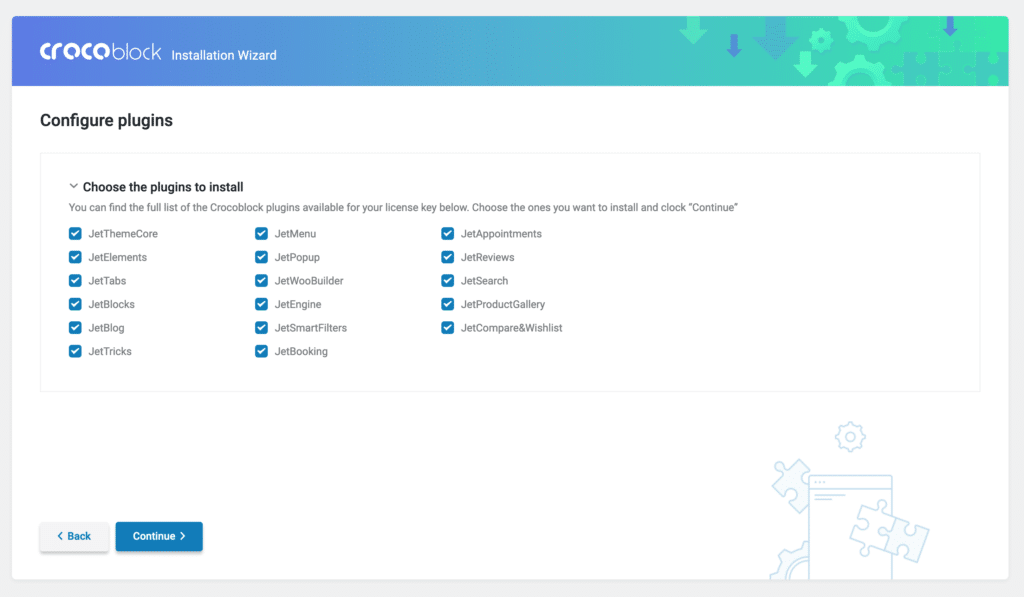
You can add or remove these at a later date too in the Crocoblock Dashboard in the WP backend.
Step 3a:
Choose your installation type.
You can either do a full flavoured install of everything that comes as part of the Crocoblock Suite or you can choose to add in the individual bits and pieces that you need to create the site.
Step 3b:
You can add or remove these at a later date too in the Crocoblock Dashboard in the WP backend.
Step 4a:
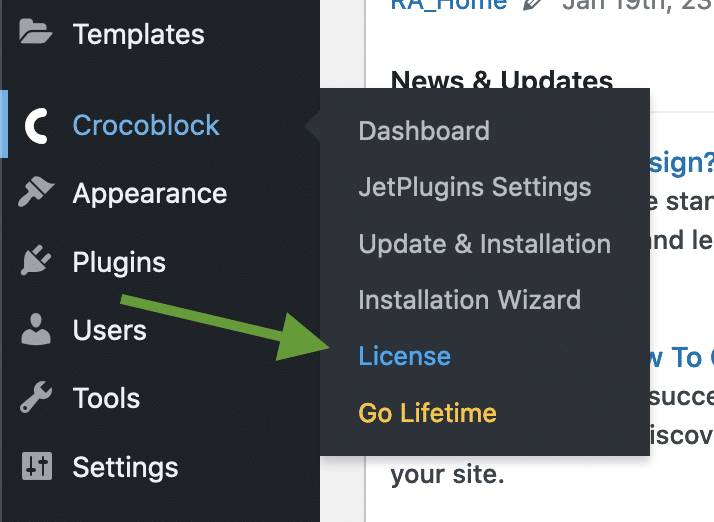
In the WP Dashboard head over to the Crocoblock License area.
Step 4b:
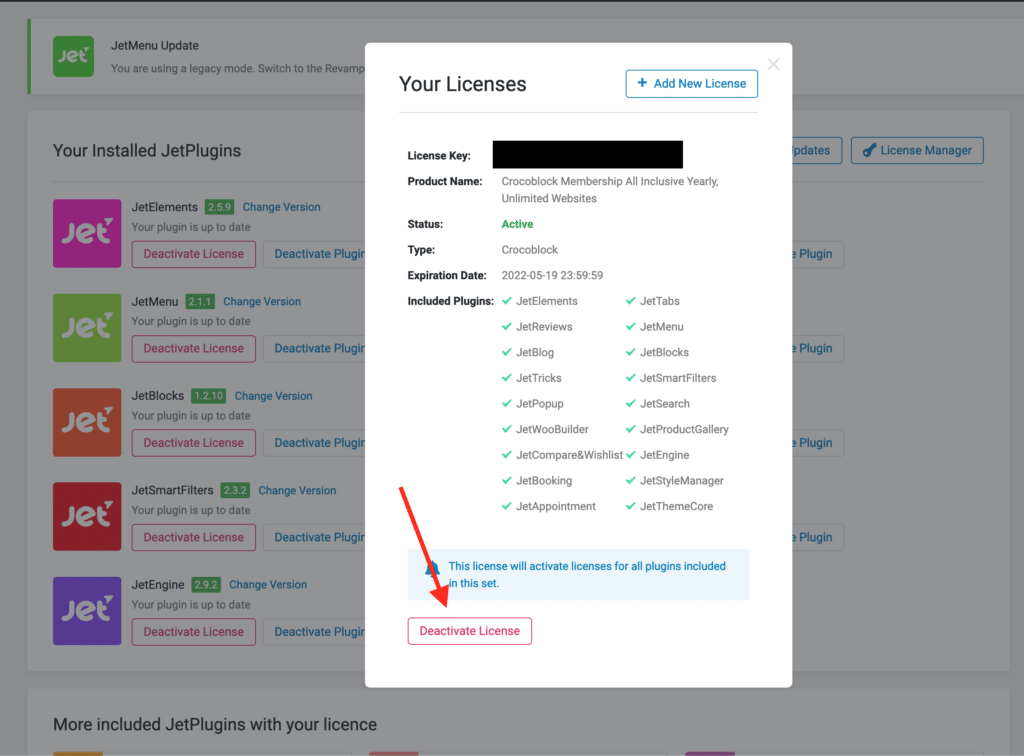
Deactivate your License.
Don’t worry, nothing will happen to the site; all the Crocoblock plugins and elements that you’ve just added will still be there.
Step 4c:
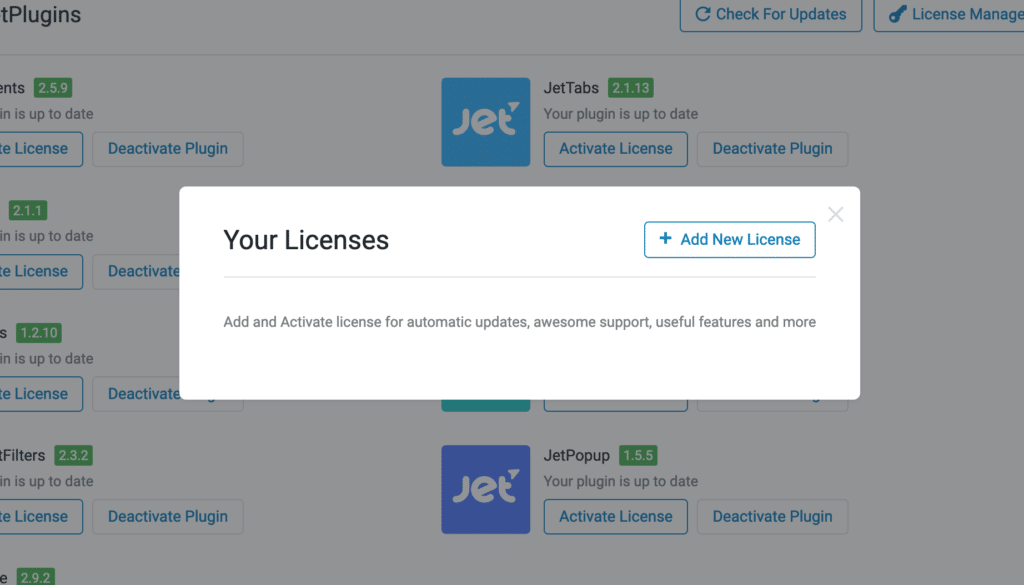
You should now see this:
Step 4a:
In the WP Dashboard head over to the Crocoblock License area.
Step 4b:
Deactivate your License.
Don’t worry, nothing will happen to the site; all the Crocoblock plugins and elements that you’ve just added will still be there.
Step 4c:
You should now see this:
Step 5a:
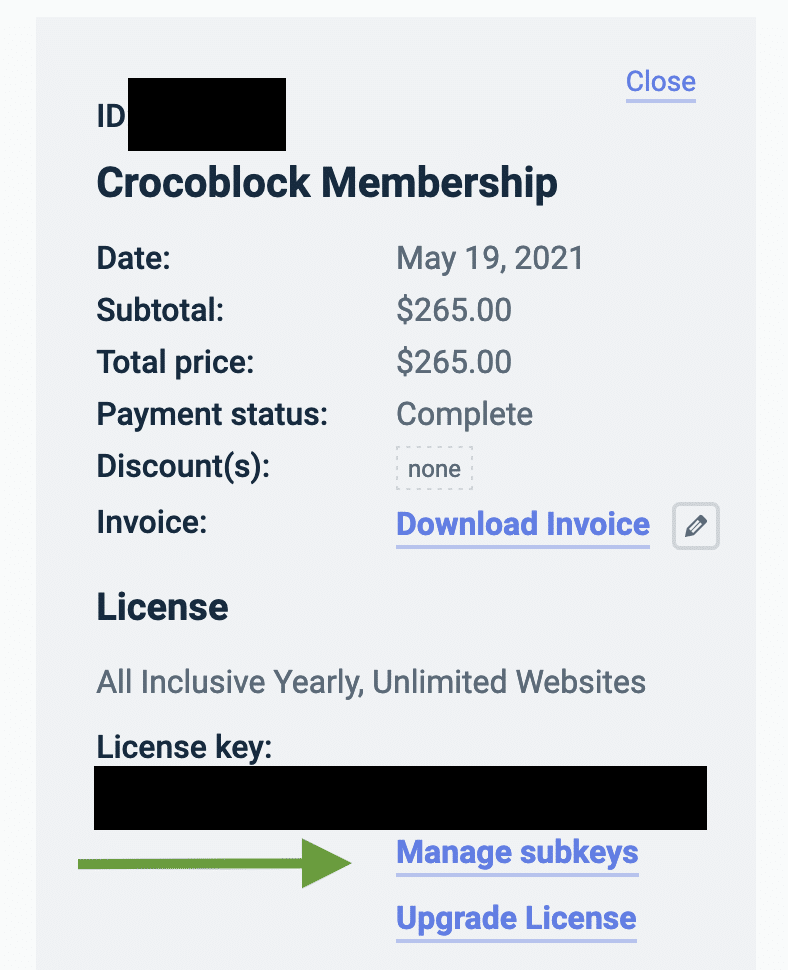
Head back over to your Crocoblock Account and access the Manage Subkeys area.
Step 5a:
Head back over to your Crocoblock Account and access the Manage Subkeys area.
Step 5b:
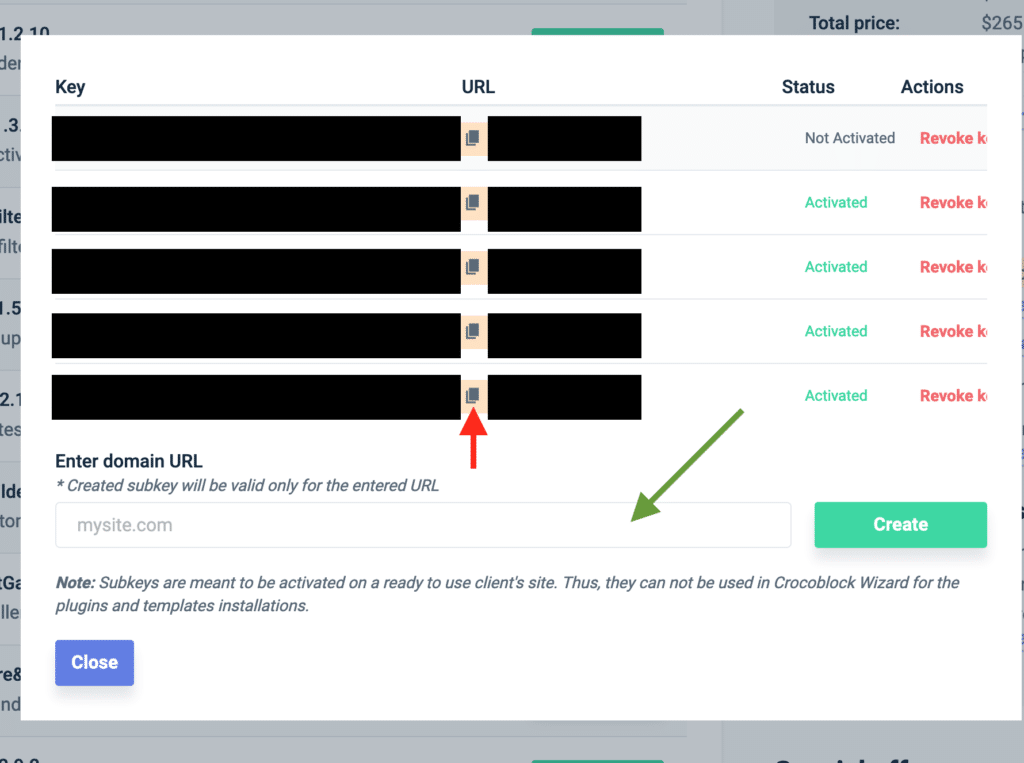
You should now see something that looks like this.
Enter the Domain Name of the site in the field provided (green arrow).
Click create and you should see a Key, a URL, a Status (not activated) and the option to revoke the Subkey (you can ignore that for now, it’s just a way of deactivating the Subkey if you don’t need it but want to keep it in play…).
Click the Copy icon (red arrow) to add this License Subkey to your clipboard and head back into your WP Dashboard.
Step 5b:
You should now see something that looks like this.
Enter the Domain Name of the site in the field provided (green arrow).
Click create and you should see a Key, a URL, a Status (not activated) and the option to revoke the Subkey (you can ignore that for now, it’s just a way of deactivating the Subkey if you don’t need it but want to keep it in play…).
Click the Copy icon (red arrow) to add this License Subkey to your clipboard and head back into your WP Dashboard.
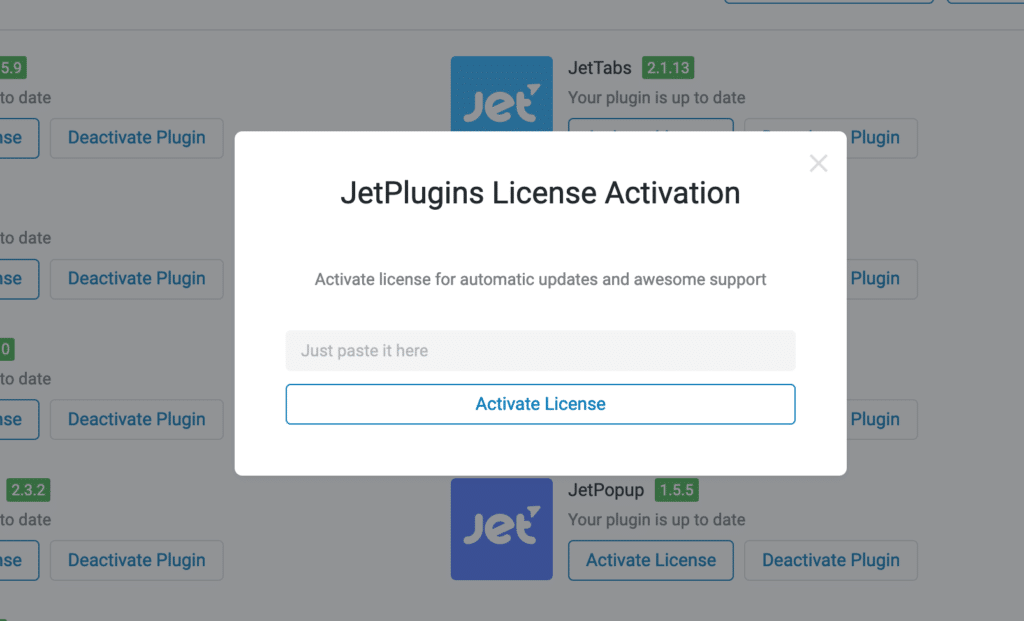
Step 6a:
Add this Subkey to your site, just as you would your regular License, to mask your actual License.
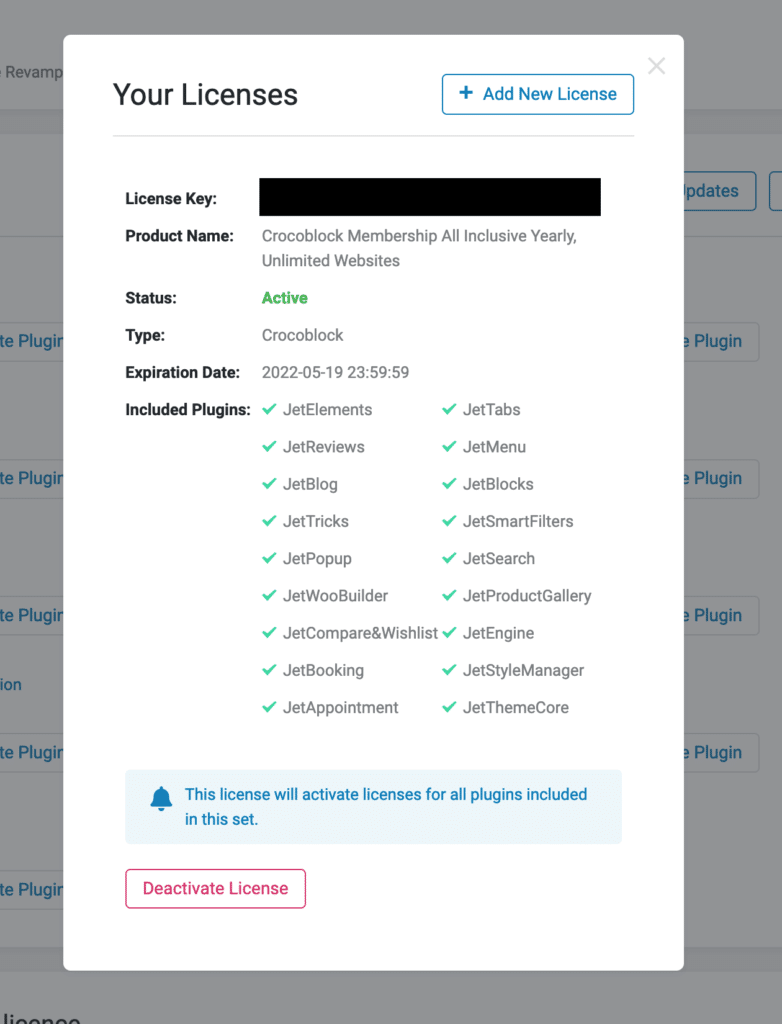
Step 6b:
You’ve now got a Subkey masking your actual License
Interested in Crocoblock?
click below for more. (affiliate link)

Post Tags: crockoblock sub keys | crocoblock | crocoblock sub key | crocoblock sub keys | crocoblock subkey | crocoblock subkeys | how to use crocoblock subkeys | sub keys | subkey | using crocoblock subkeys | using subkeys
Post Tags: crockoblock sub keys | crocoblock | crocoblock sub key | crocoblock sub keys | crocoblock subkey | crocoblock subkeys | how to use crocoblock subkeys | sub keys | subkey | using crocoblock subkeys | using subkeys